Personalizations allow you to easily customize your query letters!
Agents receiving a generic query letter often feel that the author hasn't taken the time to research that agent to determine if the agent is really a fit for their work. Adding a personalized sentence to or two, explaining why you are approaching that agent, can demonstrate you understand what they are looking for and that your work fits their interests.
For example, a Personalization might say any of the following:
- "You enjoyed my pitch at the Missouri Writers Guild Conference and invited me to submit a query."
- "The work of John Smith was a big influence on my writing. As you represent his work, I thought you might be interested in my novel."
- "As your blog states you are actively seeking middle-grade fiction, I thought you might be interested in my novel, A Bright Blue Sky."
Querier uses Personalizations as placeholders for future customized text.
One Personalization has already been created for you, allowing you to easily specify the agent's name when creating their query.
To Create A New Personalization:
- Select the project from the sidebar
- Select "Query Template"
- Expand the "Make Query Letter Template" section
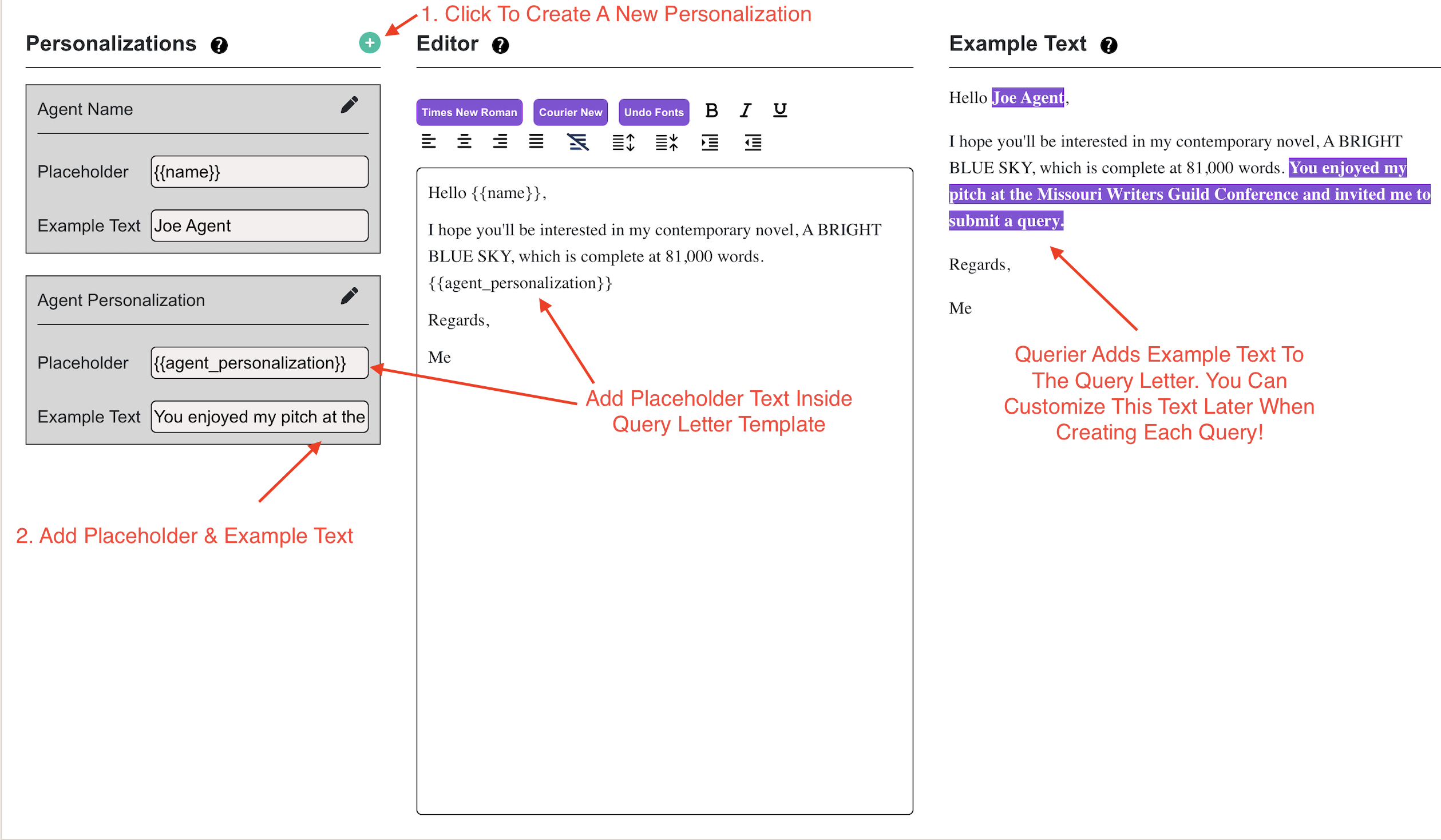
- Under the "Personalizations" section, click the green "+" icon
- Enter the Personalizations name
- Enter the "Placeholder" value: the Placeholder must be surrounded by double-curly braces on both sides (eg, {{your_substitution}} )
- Enter the "Example Text" value: this text will only be used on this page to demonstrate they substitution is working and how it will appear in the query
- Click the green checkmark button to save your Personalization.
- Add the Placeholder to your text inside the Editor
- If everything is done correctly, you should see the Example Text highlighted in the "Example Text" section on the left. Note that the highlighting is only for demonstration purposes and will not be included in actual queries.
- Click the "Submit Query Template" button at the bottom of the page
- Later, you will see a similar box when creating each query. Fill in the text directed to a specific agent, and Querier will add automatically to the query letter, allowing you to focus on only the areas you need to customize!
Was this article helpful?
That’s Great!
Thank you for your feedback
Sorry! We couldn't be helpful
Thank you for your feedback
Feedback sent
We appreciate your effort and will try to fix the article